Getting started and the panel workspace
This chapter covers signing in, choosing a database and an organization, and the application shell: the sections, functions, open windows, history and favorites panels, the command palette, keyboard shortcuts and personal settings. Working with lists and forms is described in Lists and forms, working with reports in Report window.
Signing in
Open Flexbooks in a browser and sign in with your email and password.
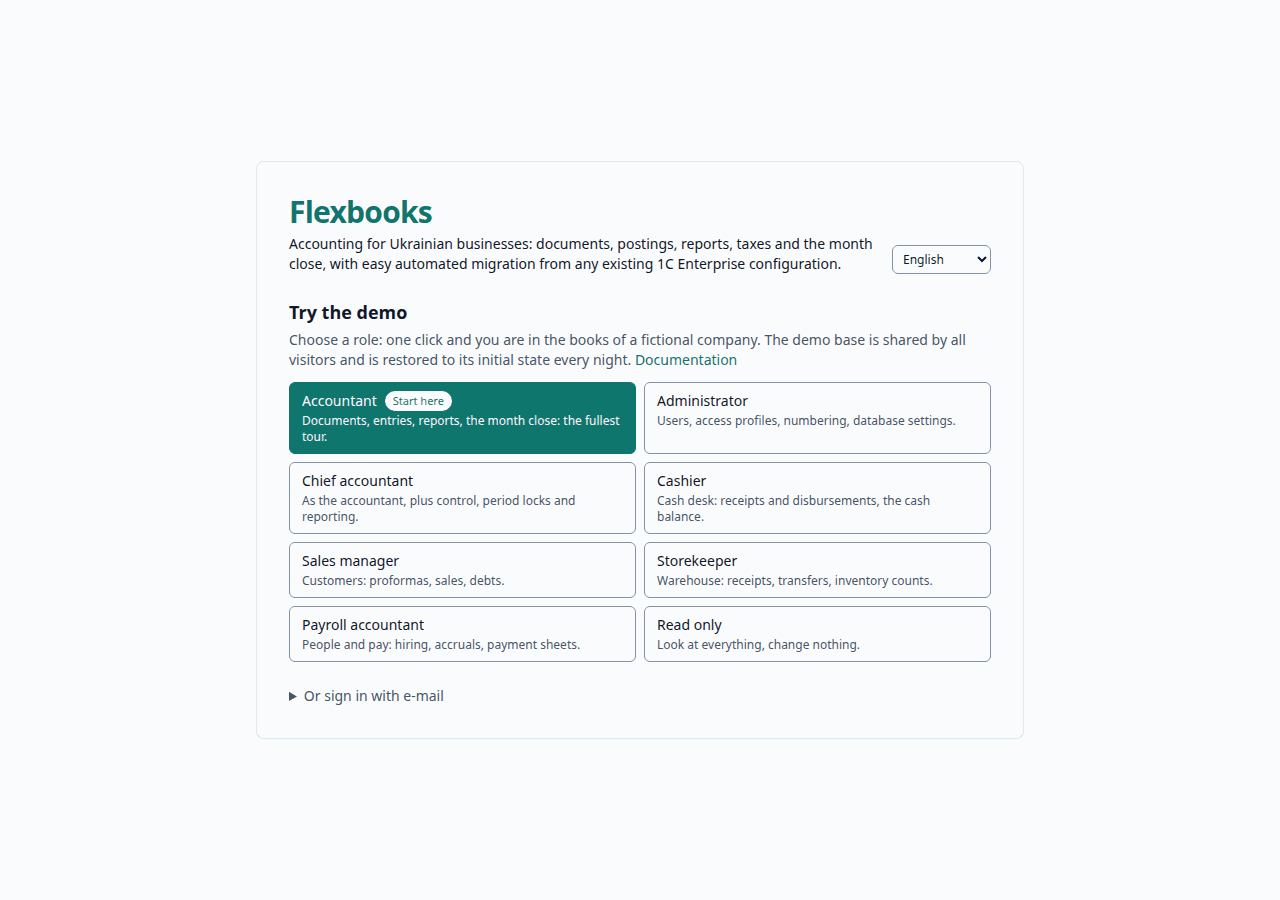
An account without access to any database can be created with the sign-up link on the sign-in screen; an administrator adds such an account to a database (see Administration). The public demo has no sign-up: the sign-in screen shows a card for each role, and clicking a card signs you in as that role.
Database and organizations
An account can have access to several databases. If there is one database, it is selected automatically; if there are several, choose one on the Choose an organization (Виберіть організацію) screen. The Switch organization (Змінити організацію) command in the top bar is shown only when you have more than one database, and it takes you back to the database choice.
Within a database you keep the books of one or more organizations (the Organizations (Організації) catalog). Documents, lists and reports open on your main organization (personal settings; without it, the main organization of the database). A user whom the administrator has allowed only some organizations does not see the data of other organizations in lists, in reports or through the AI assistant.
The panel workspace
The Flexbooks window consists of panels, each of which can be moved or hidden. The layout will be familiar to 1C and BAS users.
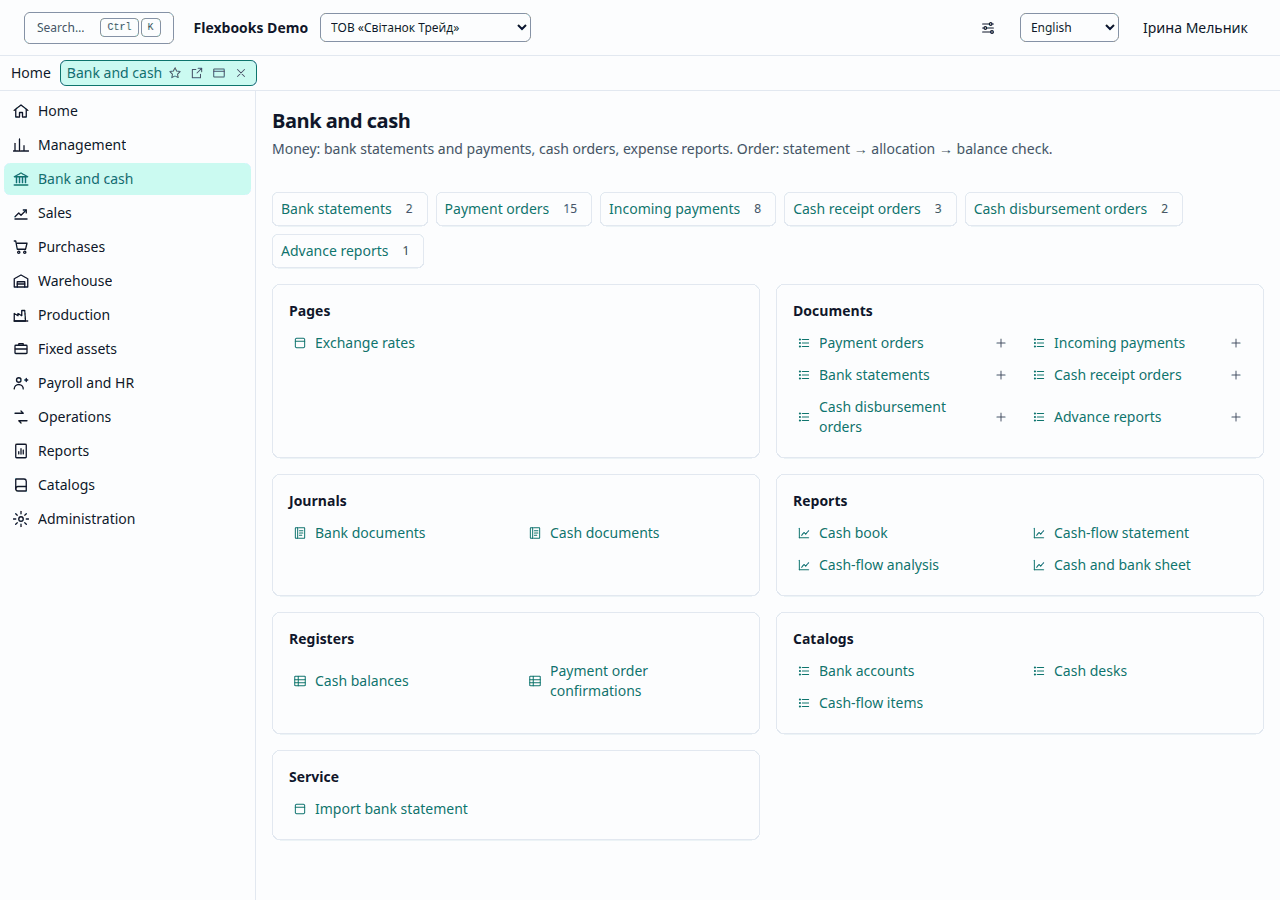
Sections panel
The Sections panel (Панель розділів) shows the application sections in this order: Home,
Management, Bank and cash, Sales, Purchases, Warehouse, Production, Fixed assets, Payroll and HR,
Operations, Reports, Catalogs, Administration. The Warehouse, Production, Fixed assets and
Payroll and HR sections are shown only when the corresponding subsystem is enabled in
Home → Functionality. Alt + 1…9 goes to a section by its number; choosing Home opens the
start page.
Choosing a section opens its page: its documents and lists, what you can create and its reports. Each section has its own chapter in this manual; see the contents.
Functions panel
The Functions panel (Панель функцій) of the current section has navigation groups,
Important, More in this section and See also, and action groups, Create,
Reports and Service. The + beside a document list creates a new document. F10 moves
the focus to the functions panel and back. An object that its section does not list explicitly
goes to More in this section of its default section (a document also to Create, a
report to Reports), so every document, catalog, report and journal is available in at least
one section.
Open windows
Each document, list or report opens in its own window; the open windows panel (tabs) shows
all open windows, marks windows with unsaved changes, and lets you close a window or close the
other windows. Switching between windows keeps the unsaved changes of each.
Ctrl + Shift + Alt + → / ← goes to the next / previous window, Esc closes the current one
(Esc does not close the start page). If a window has unsaved changes, Flexbooks asks
Yes / No / Cancel: Yes saves, No discards the changes, Cancel keeps the window open. The same
question is asked when you close the other windows and when you leave the application. You can
turn the question off in personal settings.
The window command Open in a new window opens the same object in a new browser tab (by its permanent link).
History and favorites
The History panel shows the last 50 documents, lists and reports you opened, newest first, grouped by day (Today, Yesterday…); Clear clears the history.
The Favorites panel holds the windows you marked with the star in the window title or with
Ctrl + Shift + F. You change the order of favorites with the up / down buttons. History and
favorites are stored on the server separately for each user; an object of an organization you
have no access to does not appear in them.
All functions and panel settings
In Home → Service:
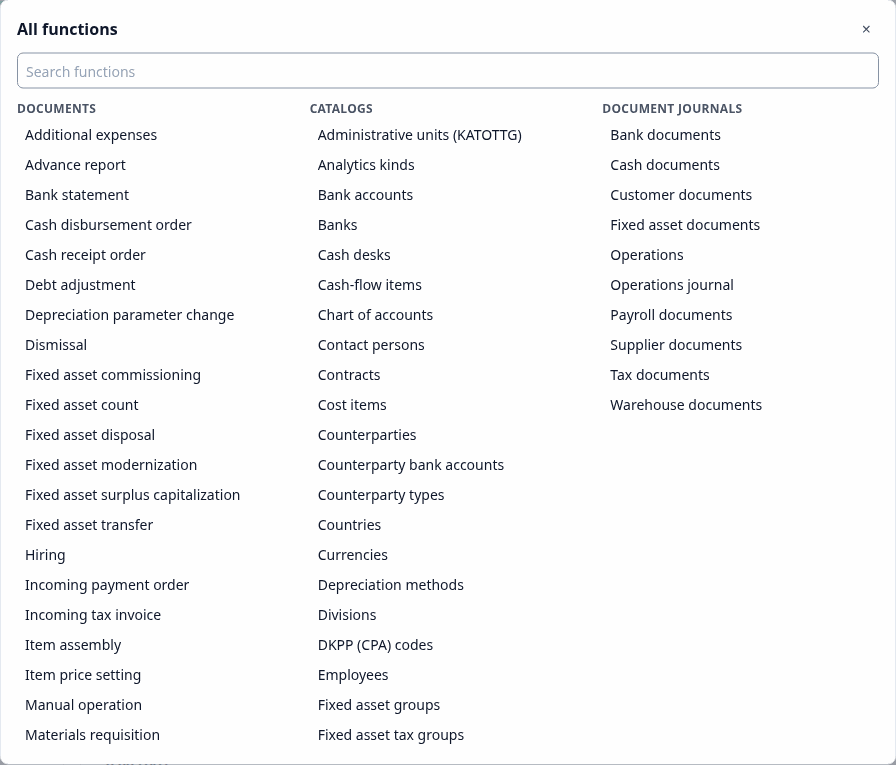
- All functions — a dialog with all objects by kind (documents, document journals, catalogs, registers, reports), with search. The picture shows the top of the list; registers and reports are further down.
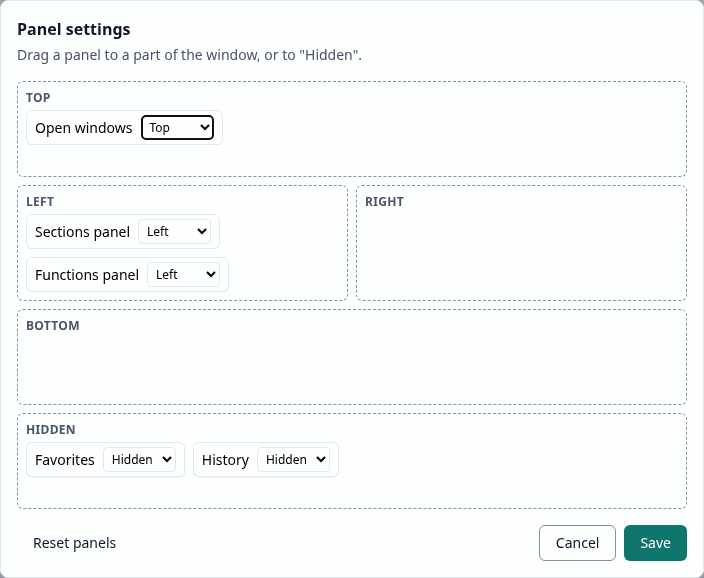
- Panel settings — drag a panel to the part of the window you want (Top, Left, Right, Bottom) or to Hidden. The layout is stored for you on the server and restored after a reload; Reset panels restores the default.
Command palette
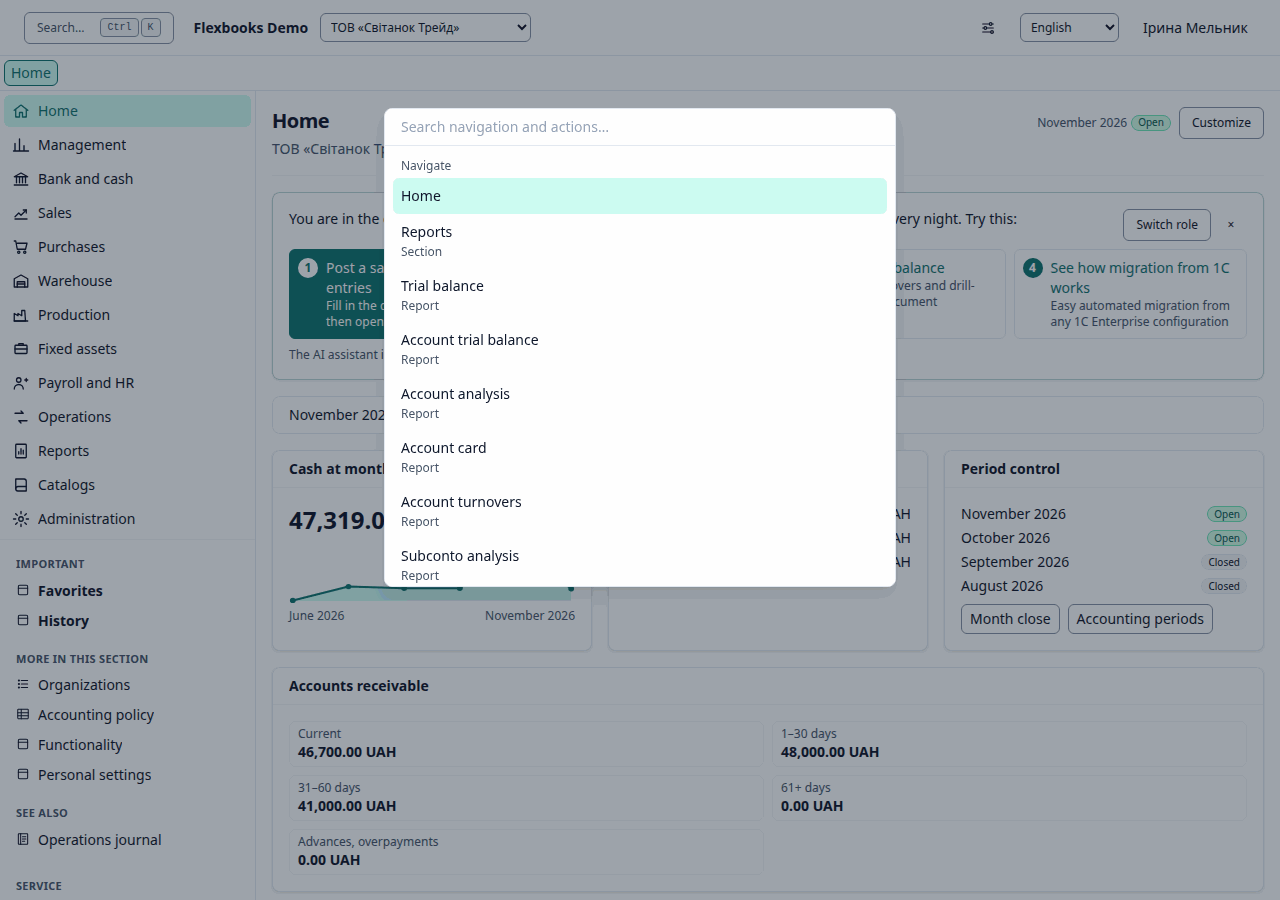
Press Ctrl + K (⌘ K on macOS) to open the command palette and go quickly to any screen or
action by typing. Esc closes the palette.
Keyboard shortcuts
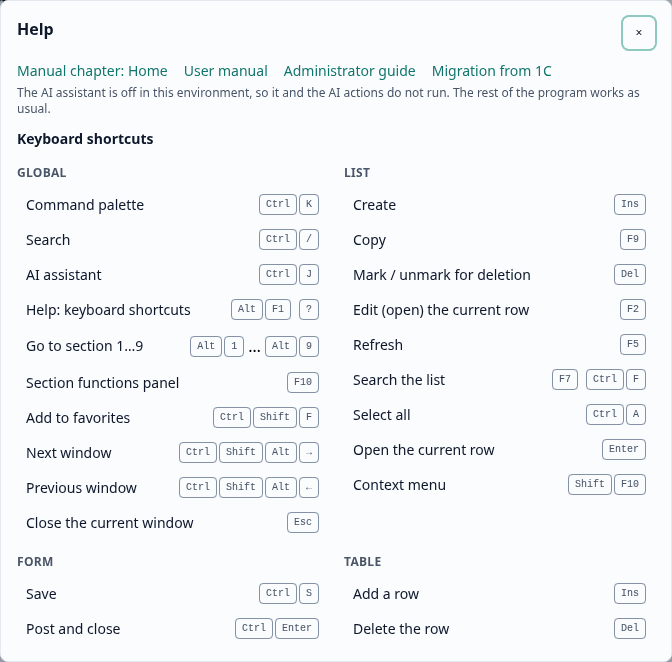
Press Alt + F1 (or ?) to open the shortcut help, grouped by where each key
works. Ctrl is ⌘ on macOS.
Everywhere:
| Shortcut | Action |
|---|---|
Ctrl + K |
Open the command palette |
Ctrl + / |
Search |
Ctrl + J |
Toggle the AI assistant |
Alt + F1 |
Show the shortcut help (also ?) |
Alt + 1…9 |
Go to section 1…9 |
F10 |
Focus the functions panel of the section |
Ctrl + Shift + F |
Add the current window to favorites |
Ctrl + Shift + Alt + → |
Next open window |
Ctrl + Shift + Alt + ← |
Previous open window |
Esc |
Close the current window |
In a list:
| Shortcut | Action |
|---|---|
Ins |
Create |
F9 |
Copy the current row |
Del |
Mark / unmark for deletion |
F2 |
Open the current row |
F5 |
Refresh |
F7 |
Search the list (also Ctrl + F) |
Ctrl + A |
Select all rows |
Enter |
Open the current row |
Shift + F10 |
Context menu |
Typing any letter or digit in a list starts the search.
In a document form:
| Shortcut | Action |
|---|---|
Ctrl + S |
Save |
Ctrl + Enter |
Post and close |
Ctrl + Shift + Enter |
Post |
Ctrl + P |
|
F9 |
Copy the document |
Ctrl + PgDn |
Next form page |
Ctrl + PgUp |
Previous form page |
In a tabular part (line items):
| Shortcut | Action |
|---|---|
Ins |
Add a row |
Del |
Delete the row |
F2 |
Edit the cell |
Ctrl + ↑ |
Move the row up |
Ctrl + ↓ |
Move the row down |
Ctrl + D |
Duplicate the row |
Enter |
Next cell / row |
In a reference input:
| Shortcut | Action |
|---|---|
F4 |
Open the selection form |
F8 |
Create a new element |
Enter |
Select the match |
Esc |
Cancel the input |
In a report:
| Shortcut | Action |
|---|---|
Ctrl + Enter |
Generate |
Ctrl + P |
Print the report |
Personal settings
Home → Personal settings contains:
- Defaults — Main organization, Main warehouse, Main cash desk, Main bank account, Default responsible person. New documents take these values. If a saved value is no longer available to you (your organizations changed or the item was deleted), it is shown as Unavailable and is not applied until you change it.
- Interface — Start page, List density (Comfortable / Compact) and Ask before closing an unsaved form.
Only changed values are saved.
Language and theme
You switch the interface language (Ukrainian / English) in the top bar without reloading the page; English translates the names of sections, documents, catalogs, fields and messages. Printed forms and regulated documents are printed in Ukrainian. The theme is Light, Dark or System. The screenshots in this manual were taken in the Ukrainian interface.