First steps
In about half an hour this page takes you through the main Flexbooks workflows on the books of ТОВ «Світанок Трейд», the office furniture trader of the demo. Everything you create disappears at the nightly reset, so feel free to experiment.
Dates in the demo move with the calendar. Below, the previous month and the current month mean exactly that, counted from today. The third quarter of 2026 is closed, so new documents go into the previous or current month. The pictures on this page were taken when the manual was last updated, so their dates can be older than yours.
Before you start
On the sign-in page click the Accountant card: one click and you are in. All the logins are on the Demo page; steps 6 and 7 use the Chief accountant and the Administrator.
Switch the interface to English in the top bar if you prefer. The Ukrainian names of commands are given in parentheses.
1. Look around
- On the left, the sections panel: Home, Management, Bank and cash, Sales, Purchases, Warehouse
and so on.
Alt + 1…9goes to a section by its number. - In the top bar, the organization selector shows the current organization, ТОВ «Світанок Трейд»; lists and reports open on it.
- In a section, the functions panel lists its documents, reports and create commands.
Ctrl + Kopens the command palette: type the name of a document or report and pressEnter.?shows every keyboard shortcut.- Management → Management monitor (Монітор керівника) shows the company's money, debts, sales and taxes for the current period. The figures come from the documents of the current and previous months.
More: Getting started.
2. Look at a posted document
- Open Sales → Sales of goods and services (Реалізація товарів і послуг). The list shows the company's sales, from the third quarter of 2026 up to this month.
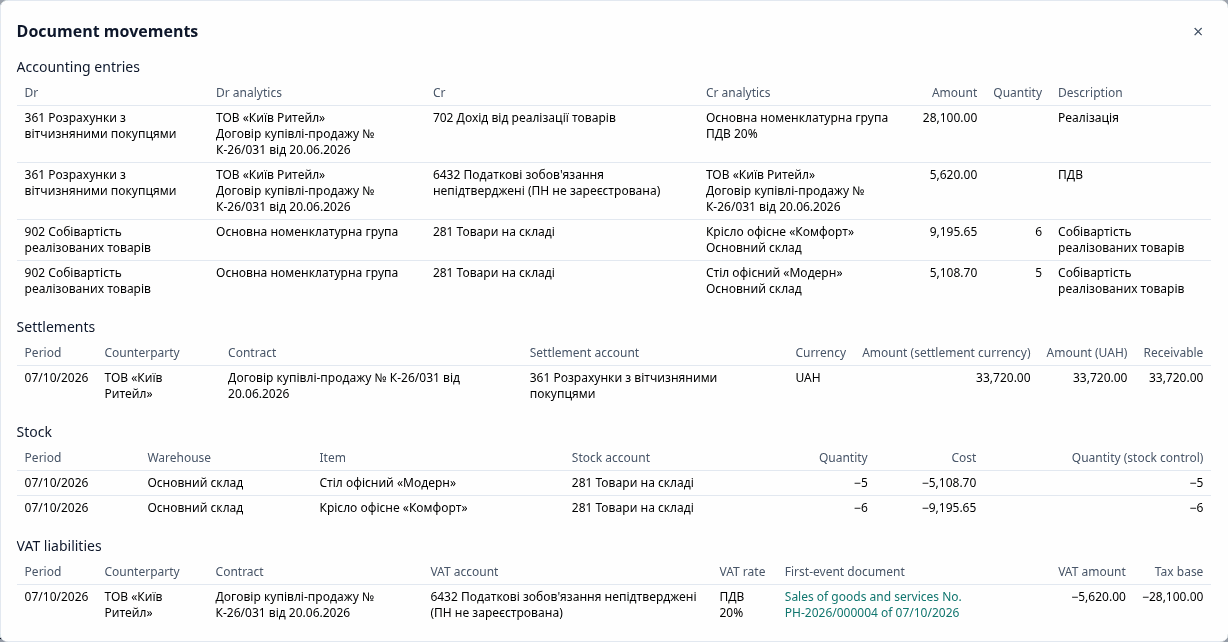
- Open a posted sale to ТОВ «Київ Ритейл» of the previous month: six office chairs and five office desks.
- Press Dr/Cr (Дт/Кт): the Document movements panel shows the accounting entries (revenue Dr 361 Cr 702, VAT Dr 361 Cr 6432, cost of goods Dr 902 Cr 281) and the register movements.
More: Lists and forms.
3. Create and post a sale
- In the Sales of goods and services list, press Create (
Ins). The date is today's, in the open current month. - Choose the Counterparty, for example ТОВ «Добрий Дім». Its contract and currency are filled in from its settings. Choose the warehouse Основний склад (the main warehouse).
- In the tabular part add a line (
Ins), start typing Стіл офісний and pick the desk from the list; enter a quantity of 2 and a price of 2 500. - Post and close (
Ctrl + Enter). If the warehouse is short of the goods, the document tells you what is missing: try a quantity of 500 to see it. - Based on the sale, create a Tax invoice (Податкова накладна): the Create based on command in the document form. Its registration status shows where it stands in ЄРПН, the state register of tax invoices.
More: Sales.
4. Generate a report
- Open Reports → Trial balance (Оборотно-сальдова відомість).
- Choose the organization ТОВ «Світанок Трейд», set the period to the current month and press
Generate (
Ctrl + Enter). - Double-click the row of account 361: the Account card opens, and from it the document itself. Your new sale is already there.
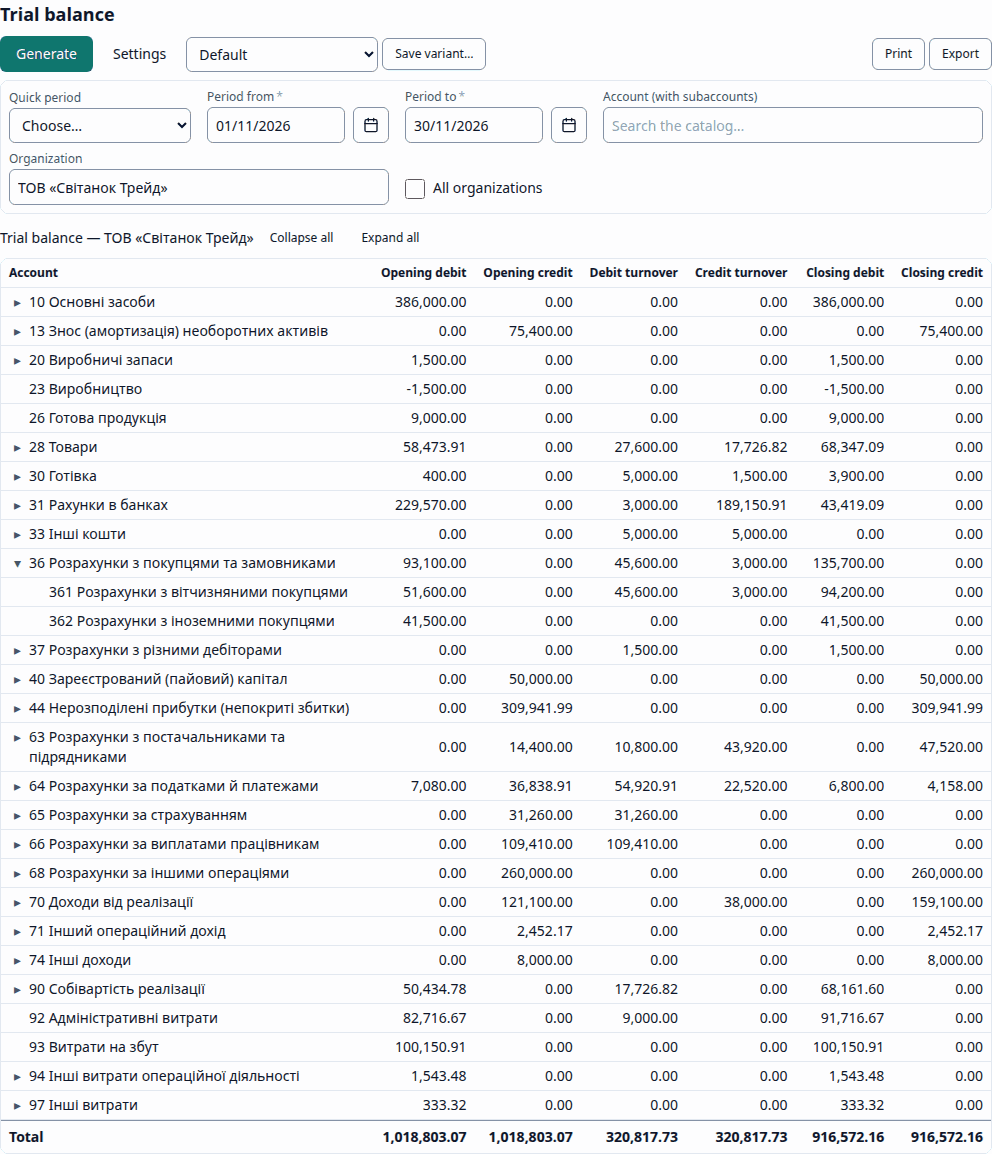
Account 23 Production is negative in the picture because October is not closed yet on the demo: the Production cost distribution operation in step 6 clears this account. To compare, generate the closed month of September 2026: that trial balance is on the home page.
More: Report window and Reports.
5. The AI assistant
Ctrl + J opens the AI assistant, for questions in plain language such as "How much do customers
owe us at the end of the month?". It answers with figures and links to the sources, and sees only
the data your role may see.
AI is off on the public demo, so here the assistant only answers that it is not configured. Whoever runs the server turns it on by configuring a model provider. More: AI features.
6. Close the month (Chief accountant)
The third quarter is closed already; the previous month is waiting for you.
- Sign in as the Chief accountant.
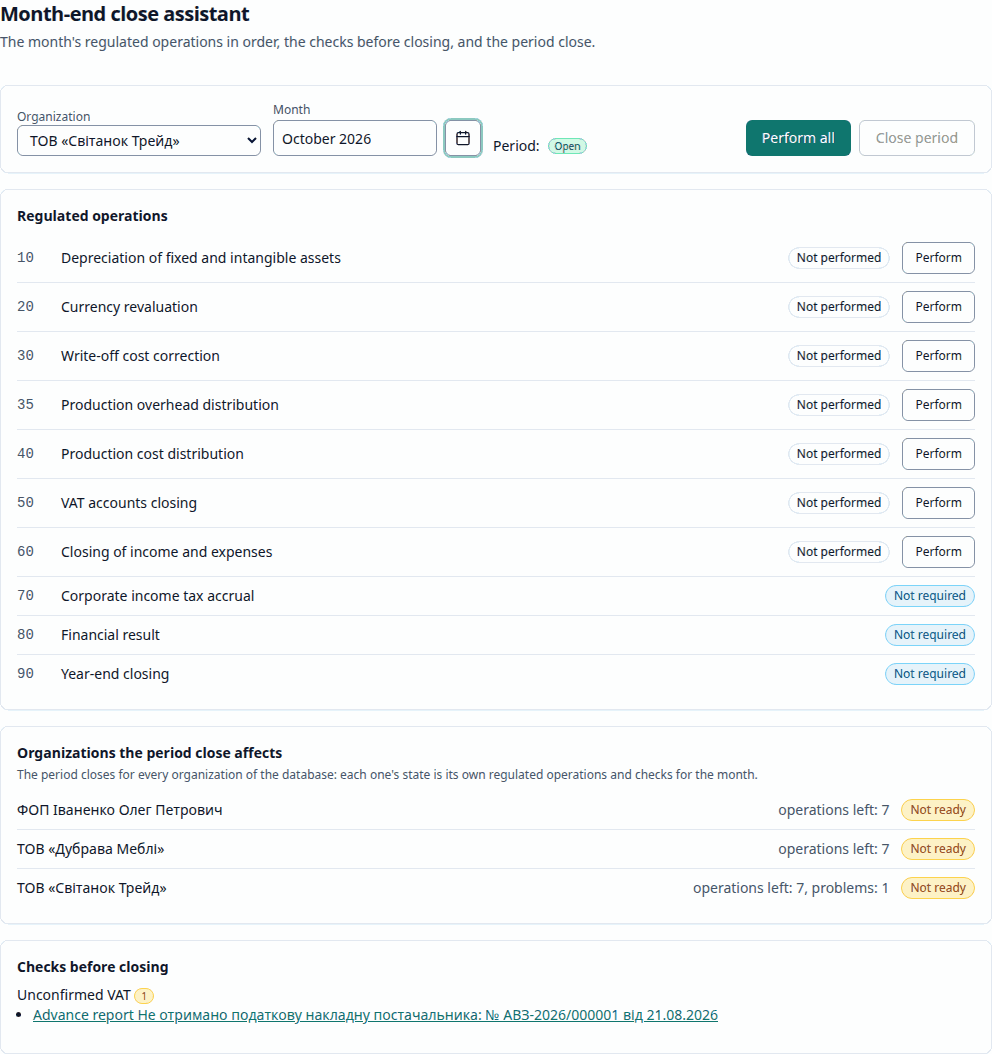
- Open Operations → Month-end close assistant (Помічник закриття місяця), choose ТОВ «Світанок Трейд» and the previous month. To compare, look at September 2026, where every step has been performed and the period is closed.
- Perform all (Виконати всі): the regulated operations run in order: depreciation, currency revaluation, the cost correction, the VAT and the closing of income and expenses.
- Review the Checks before closing (the demo has some on purpose, such as an advance report with no tax invoice from the shop). The period is closed for the whole database, so the other two organizations need their operations performed too: choose each of them and press Perform all.
- Close period (Закрити період). After that the month's documents can no longer be changed or posted.
More: Operations.
7. Look at the 1C migration (Administrator)
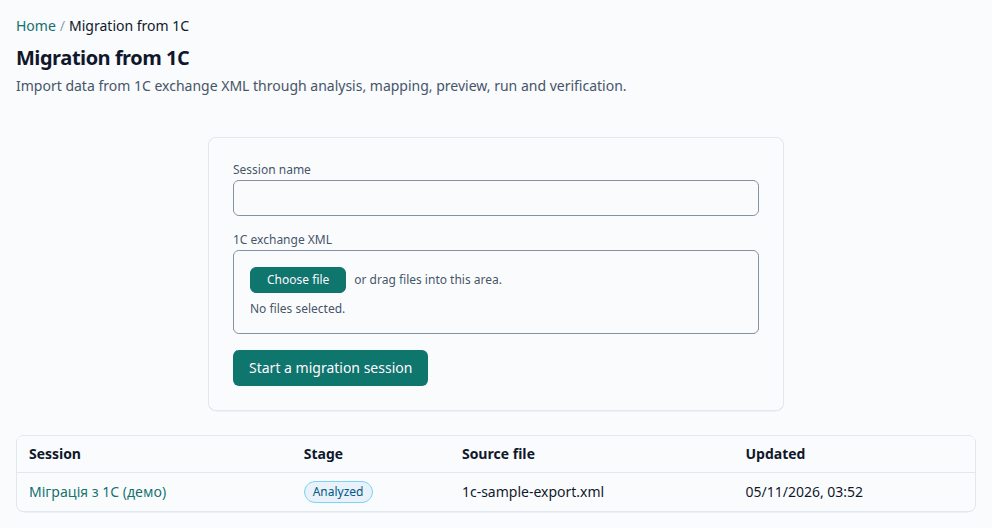
Sign in as the Administrator and open Administration → Migration from 1C. The session Міграція з 1С (демо) has a sample export already analyzed: open it to see the Analysis and Mapping steps. The reconciliation report of the Verification step appears after a run; the demo keeps no finished session, and a run writes to the shared database until the nightly reset.
More: Migration from 1C: how it works.
Next
- Try other roles: the Cashier works with the cash desk, the Storekeeper with the warehouse, Read only changes nothing.
- Look at the warehouse of the previous month: a transfer to the shop floor, an assembled kit, a stock count with one chair short and its write-off: Warehouse.
- See a closed year: choose ТОВ «Дубрава Меблі» in the organization selector of the top bar and open the 2025 reports, with production and payroll: Demo.
- Open the VAT return of the previous month: Reports.