Report window
All Flexbooks reports — standard accounting reports, management reports, section reports — open in the same report window. Regulated reports (returns, financial statements) have a window of their own — see Reports → Regulated reporting.
Parameters and generation
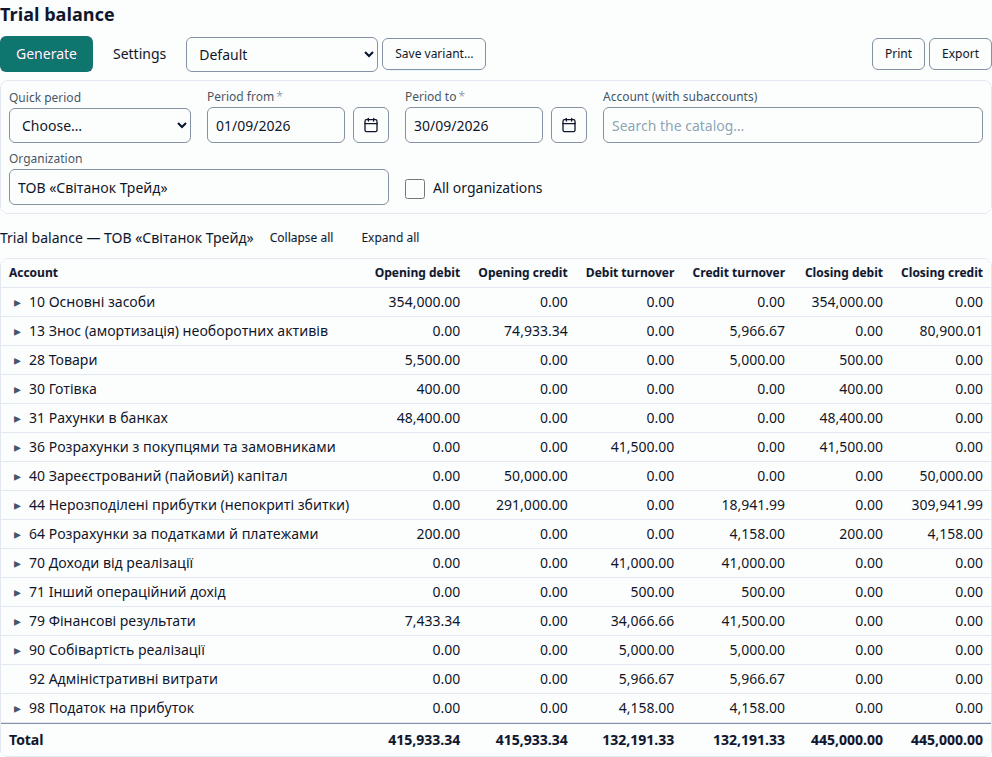
Above the result is the parameters row: period (the current month by default), organization,
account, analytics and so on. A required parameter must be filled in, otherwise the report is
not generated. Generate (Ctrl + Enter) builds the report. The parameters are passed in the
window address, so a link to a report opens it with the same parameters.
Result
The result is a table with frozen headers, groups with subtotals and a grand total. Groups collapse and expand.
Settings
The Settings side panel: Row groupings, Column groupings, filters, sorting, Conditional appearance, totals and other settings (for example, Comparison — With the previous period or With the same period last year). Apply generates the report again.
Report variants
Report variant — the standard variants, your saved ones and shared ones. Save variant… saves the current settings together with the parameters visible in the window under a name; the Available to everyone checkbox makes the variant shared (it is shown as "name (shared)"). Save changes updates the variant, Delete variant deletes it.
Drill-down
A double click (or Enter) on a row opens its drill-down in a new window: from the
Trial balance (Оборотно-сальдова відомість), the Account card (Картка рахунку); from the
card, the document. The row context menu (Drill down) lists the drill-downs available to you:
a drill-down to a report you cannot open, or one whose row fields are empty, is not offered.
Open document opens the document of the entry.
Print, export, e-mail delivery
The export menu is available after generation: Print (Ctrl + P), Excel (XLSX),
CSV, PDF, Save to the organization's files. Send by e-mail… (Розсилка) saves an
e-mail delivery of the same report: Daily, Weekly (Monday) or Monthly (on the 1st),
with a report period (for example, Previous month) and a list of recipients. Letters go out
once the administrator of the installation has set up the mail server.
Access
A report shows only the data of the organizations you have access to. All organizations is available only to a user with rights to all organizations.