Lists and forms
All documents, catalogs and journals open in dynamic lists, and their items open in forms with the same command bar. This chapter describes the common behavior; the specifics of individual documents are given in the chapters for each application section.
Dynamic lists
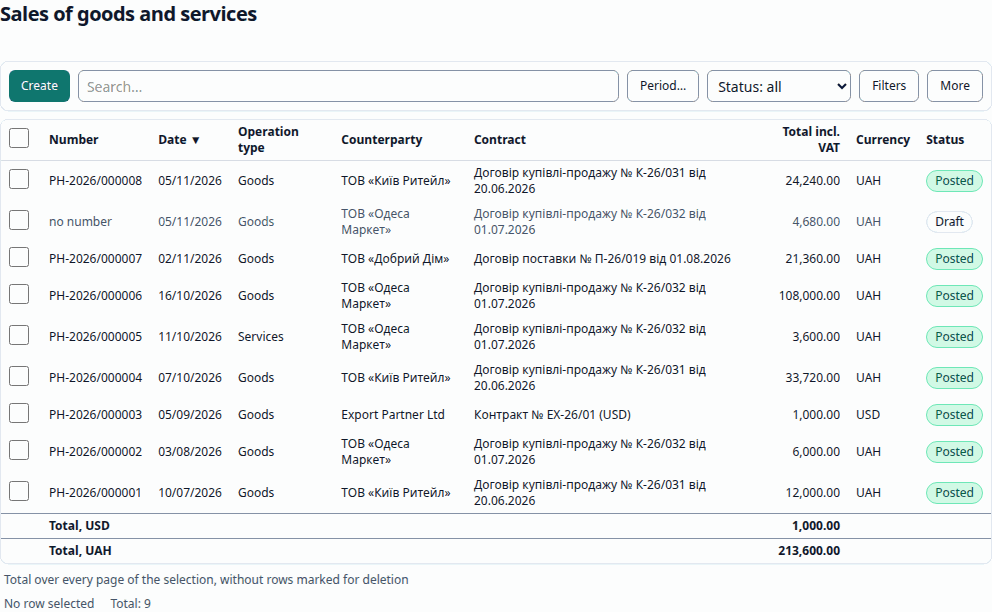
- Type-ahead search. Start typing any letter or digit to open the list search (also
F7orCtrl + F). Search, filters and sorting run on the server, so they apply to the whole list, not just to the loaded rows. - Sort — click a column header.
- Filters — Add filter: a column, a Condition and a Value; you remove a filter from the filter bar.
- Period of a document list — Today, This week, This month, This quarter, This year, Period… or Any date.
- Organization. A document list opens on the current organization; a user with rights to all organizations can choose All organizations.
- Group by — groups rows by a column; groups collapse and expand.
- Customize columns… — visibility, order and width of the columns. List settings are saved for you; Reset settings restores the defaults.
- Saved views — Save current view… saves the filters and sorting under a name; an administrator can Share with the organization (a shared view).
- More — a menu with all list commands (create, copy, post, unpost, mark for deletion,
print, refresh, settings, export). The same commands are in the row context menu
(
Shift + F10or the right mouse button). - Batch processing. Select several documents (
Ctrl + Aselects all) and post, unpost or mark them for deletion with one command. The progress is shown, and the documents that could not be processed are listed separately with the reason. - Export list to XLSX / CSV — with the current columns and filters; catalog references are exported as names, numbers as numbers. The export is limited by the number of rows: if there are more rows, Flexbooks exports the first ones and suggests narrowing the filter.
- Hierarchical catalogs are shown in Tree, List or Tree and list mode; Create group creates a group instead of an item.
- The status bar shows the current row, the number of selected rows and totals.
Ins creates, F9 copies, Del marks for deletion (or removes the mark), F2 / Enter
opens, F5 refreshes the list.
Document journals
A journal (for example, Bank documents (Банківські документи) or Customer documents (Документи покупців)) is a list of documents of several kinds: each row is labeled with its document kind and opens its own form, and the create menu offers every kind of the journal.
Selection form
A list opened from a form field works in selection mode: Enter or a double click selects
the row and returns it to the field; the Select button does the same.
Document forms
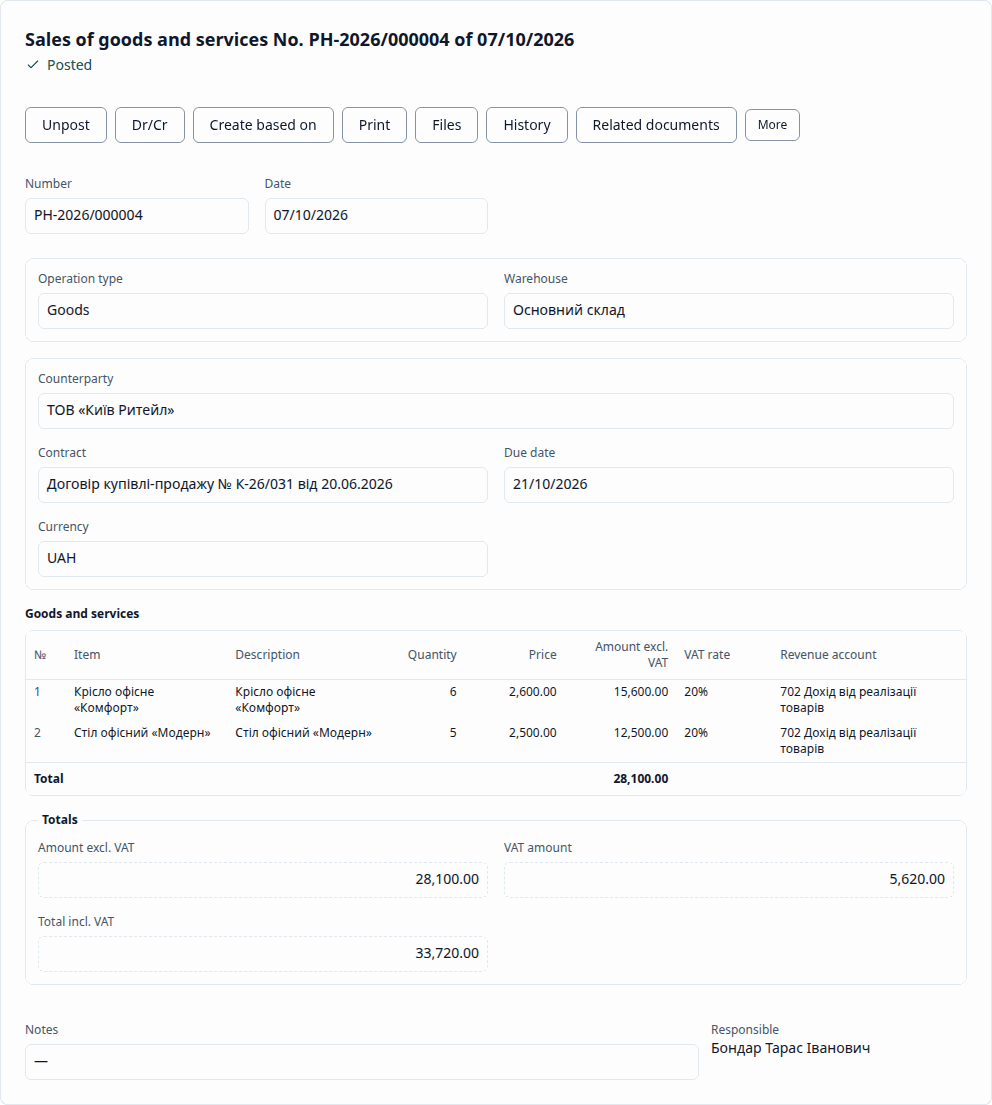
Title and state
The form title is "Document name No. … dated …"; a new document has the title "Name (new)". The status line shows New, not saved yet, Not posted, Posted or Marked for deletion. In lists, a document that has not been posted yet is marked Draft.
Command bar
The form's commands: Post and close (Ctrl + Enter), Save (Ctrl + S), Post
(Ctrl + Shift + Enter), Dr/Cr, Create based on, Print (Ctrl + P), Files,
History, More. Commands you have no rights to are not shown.
- You can post a new document right away: it is saved and posted in one action.
- A posted document cannot be changed: Post and close, Save and Post are unavailable until you press Unpost: on a posted document this button comes first on the bar.
- A document is not posted if its date falls in a closed or locked period, or on or before the editing restriction date.
Number and date
The number is assigned from the organization's counter by the numbering template (see Administration → Numbering); each organization numbers its documents separately, with its own prefix. You can enter the number manually: it must be unique within the organization, and the counter skips it.
Autosave and conflicts
After the first Save, the draft is saved automatically a few seconds after the last change. If the document was changed in another tab or by another user in the meantime, the form shows a conflict and offers Load the server version or Overwrite with my changes; your unsaved changes are not lost silently.
Tabular part
A tabular part has a toolbar with Add, Pick, Fill, Delete, Up / Down,
Copy, row numbers and a Total. Keys: Ins adds a row, F2 edits a cell,
Ctrl + ↑ / Ctrl + ↓ moves a row, Ctrl + D duplicates a row, Del deletes a row.
Pick opens a dialog: choose items (Enter or a double click), enter the Quantity and
Price; the items are collected under Picked, and Add to the document adds them as
rows.
Reference input (type-ahead)
Type in a catalog field and Flexbooks shows matches by the catalog's search fields. Enter
selects a single match; the arrow keys choose among several; Enter without a choice opens the
selection form. F4 is Show all (the selection form), F8 or + Create creates a new item
that returns to the field at once; Open opens the selected item; Esc restores the previous
value.
Recalculation
Changing a field recalculates the dependent ones: line amounts and VAT, totals, values from the contract (for example, choosing a counterparty fills in its main contract).
Document movements (Dr/Cr)
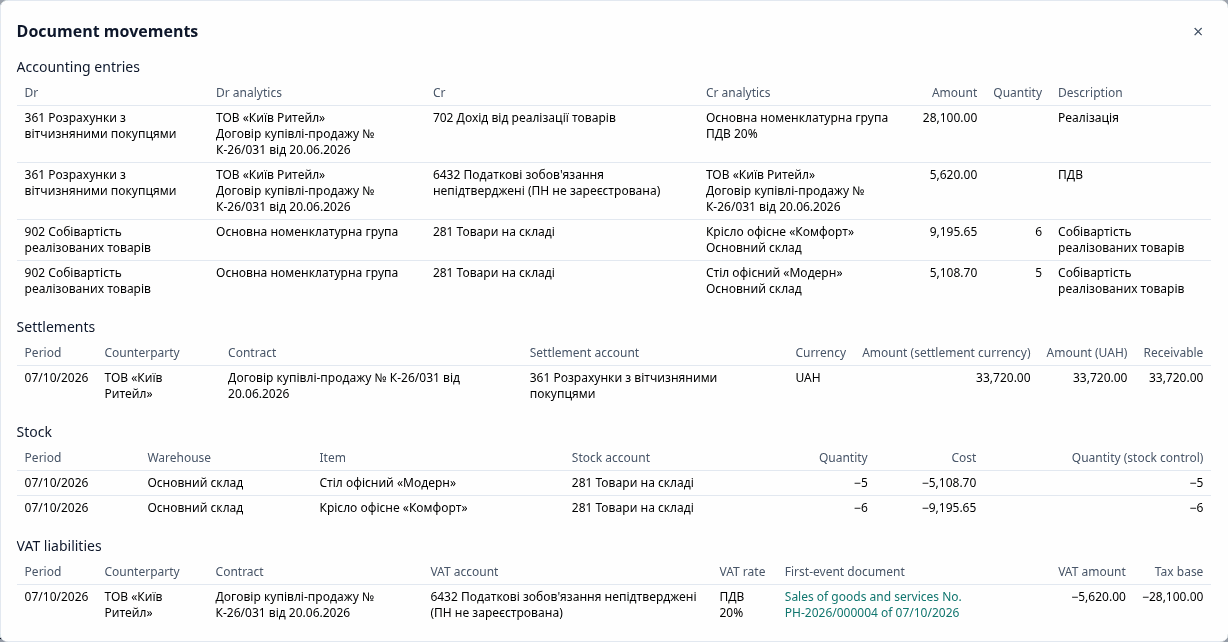
The Dr/Cr button of a posted document opens the Document movements (Рух документа) panel: Accounting entries (Dr, Dr analytics, Cr, Cr analytics, amount, description) and the movements of other registers, by register. If you have no right to read a register, the panel says so instead of hiding the movements silently.
Create based on and related documents
Create based on offers the documents that can be created from the current one; the new document opens filled in (with the same organization) and remembers its basis document. Related documents (Структура підпорядкованості) shows a tree of basis documents and documents created based on this one; any node opens in its own window.
Files, history, print
- Files — add a file, view it (PDF), download it, delete it (with confirmation).
- History — Change history: versions of the document with the differences in header fields and rows; Restore this version creates a new draft version. A posted document is not changed from the history.
- Print — Print preview with a choice of Print form and Download PDF.
Deletion mark
Del in a list or the form command marks a document for deletion. For a posted document you are
first offered to unpost it: after you confirm, its posting is cancelled and the document is
marked in one action. Marked objects are physically deleted by an administrator (see
Administration).
Unposting and dependent documents
You cannot unpost a document while a posted document created based on it refers to it (for example, a tax invoice for a sale): unpost the dependent document first. To cancel the effect of a posted document at a later date without changing it, create a Reversal (storno) (Сторно) document based on it (see Operations).
Catalog item forms
A catalog item has the same bar (Save and close — Ctrl + Enter, Save, More),
pages and tabular parts (for example, a counterparty's VAT registration periods).